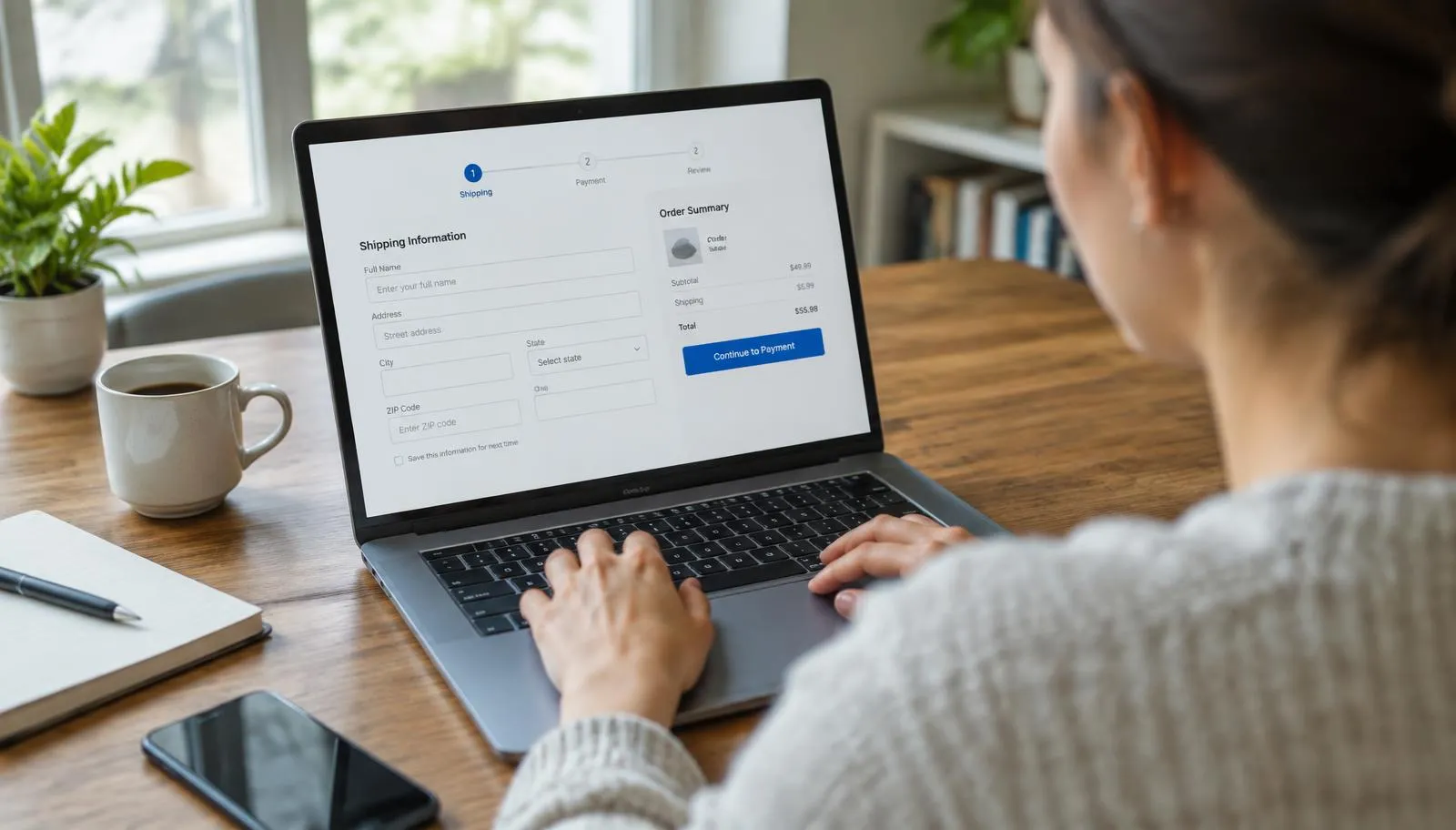
You can spend months on a store's homepage, product photography, and brand identity, and still lose most of your buyers on one page: checkout.
The average cart abandonment rate is 70.22%, according to Baymard Institute's analysis of 50 different studies. Some of that is unavoidable, since people browse and compare. But a large share comes from problems store owners can fix. According to Baymard, nearly 1 out of 5 shoppers have abandoned a cart due to a "too long/complicated checkout process", yet for most checkouts it's possible to make a 20-60% reduction in the number of form elements shown to users during the default checkout flow.
For WooCommerce stores, the checkout form is one of the easiest places to recover lost sales. The default form works for every store, which also means it isn't built for yours. This guide covers why checkout fields matter, how to customize them, and the specific changes that make checkout faster and easier to complete.
Why Checkout Fields Have Such a Big Impact on Conversions
Every field on a checkout form asks the shopper to do something: think, type, decide, or look for information. Each one adds a small amount of friction, and friction builds up. By the time a shopper reaches checkout, they've already decided to buy. The form's only job is not to change their mind.
Baymard's research shows an ideal checkout flow can be as short as 12-14 form elements (7-8 if you count only the form fields). Yet the average US checkout flow contains 23.48 form elements displayed to users by default.
The default WooCommerce checkout adds to the problem in three ways:
- It shows the same fields to everyone. A shopper buying a digital download sees the same shipping fields as someone ordering furniture.
- It collects data many stores don't need. Fields like Company Name and Address Line 2 appear by default, whether or not your customers use them.
- It can't collect what some stores do need. Custom orders, B2B sales, gifts, and scheduled deliveries often need information the default form has no field for, so store owners end up chasing customers by email after the order.
Customizing checkout fields solves all three: fewer fields for most shoppers, the right fields for specific orders, and cleaner data for your team.
What You Can Customize in WooCommerce Checkout
Before choosing a method, it helps to know what's adjustable:
- Default fields: Remove, hide, rename, reorder, or change fields from required to optional.
- Custom fields: Add new fields such as delivery date, gift message, VAT number, or file upload.
- Field visibility: Show fields only when they're relevant, based on the product, cart contents, user role, or another field's value.
- Field placement: Put fields where they make sense in the flow, such as delivery instructions after the shipping address rather than at the bottom of the page.
- Validation and formatting: Make sure phone numbers, postal codes, and emails are entered correctly the first time.
- Where the data goes: Show collected information in order emails, the admin order screen, and the customer's account.
Method 1: Customize Checkout Fields with Code
If you're comfortable editing theme files, WooCommerce lets you modify the classic (shortcode-based) checkout using the woocommerce_checkout_fields filter. For example, this snippet removes the Company and Address Line 2 fields and makes the phone number optional:
add_filter( 'woocommerce_checkout_fields', function( $fields ) {
    unset( $fields['billing']['billing_company'] );
    unset( $fields['billing']['billing_address_2'] );
    $fields['billing']['billing_phone']['required'] = false;
    return $fields;
} );
Add it to a child theme's functions.php file or a code snippets plugin, never to the parent theme, where updates will overwrite it.
The code approach has limits. This filter only applies to the classic checkout, and the newer Checkout Block uses a different system. Adding conditional logic, new field types, or pricing through code quickly becomes a development project, and every change needs a developer.
Method 2: Use a Checkout Field Editor Plugin
For most store owners, a checkout field editor plugin is the faster and safer option. It gives you a visual interface to manage fields without touching code, and the better ones support both classic and block checkout.
As an example, the WooCommerce Checkout Field Editor by FMEAddons lets you edit default fields, add custom fields from 25 field types, and control visibility with conditional logic. The basic workflow looks like this:
- Open the field editor. Go to WooCommerce > Checkout Fields in your WordPress dashboard.
- Pick a section. Choose Billing, Shipping, or Additional Information, or create a new section and place it where it fits, such as after the shipping fields or before the payment methods.
- Clean up default fields. Disable fields you don't need, rename unclear labels, update placeholders, and drag fields into a logical order.
- Add custom fields. Choose a field type (text, select, date picker, file upload, and so on), then set the label, placeholder, and whether it's required.
- Set visibility rules. Assign the field to specific products, categories, or user roles, or show it only when another field has a certain value.
- Add validation. Apply a format rule, input mask, or confirm-field check so data is entered correctly.
- Choose where the data appears. Enable display in order emails, the admin order screen, the Thank You page, or the customer's account.
Whichever tool you use, the setup only matters if the decisions behind it are sound. The next section covers those decisions.
10 Checkout Field Customizations That Increase Conversions
1. Remove Every Field You Don't Truly Need
Start by listing every field on your checkout and asking one question: do we use this data to fulfill the order? If not, remove it.
Common candidates:
- Company Name for B2C stores
- Address Line 2, which can be folded into a single address field or made optional
- Phone number, unless your courier requires it
- Shipping fields for stores selling only digital products or services
Every field you remove is one less reason for a shopper to hesitate.
2. Show Fields Only When They're Relevant
Conditional logic is the most effective way to keep checkout short without losing data. Instead of showing every possible field to every shopper, you show each field only to the people who need it.
Practical examples:
- Show a VAT or Tax ID field only to users with a wholesale or B2B role.
- Show a gift message box only when the shopper ticks "This is a gift."
- Show a delivery date picker only when the cart contains perishable or made-to-order products.
- Show an engraving text field only for personalized products.
Most shoppers see a shorter form, and the shoppers who need extra fields get them at the right moment.
3. Tailor Fields to Specific Products and Categories
Different products often need different information. A print shop may need artwork uploads, a clothing store may need fit notes, and a furniture store may need floor and elevator access details.
Assigning fields to specific products, categories, or tags means each order collects what it needs, with nothing extra for anyone else. It also cuts down on the post-purchase "can you send us…" emails that slow down fulfillment and frustrate customers.
4. Put Fields in the Order Shoppers Expect
People fill in forms faster when the order matches how they think. Contact details come first, then the shipping address, then delivery preferences, then payment.
A few layout rules help:
- Keep related fields together, such as city, state, and postcode.
- Place optional extras like gift notes or delivery instructions near the part of checkout they relate to.
- Use section headings to break long forms into clear chunks.
5. Write Clear Labels and Mark Optional Fields
Vague labels create doubt, and doubt slows people down. "Address 2" is less clear than "Apartment, suite, or unit (optional)."
Label every field in plain language, and clearly mark which fields are optional. Don't rely on placeholder text as the only label, since it disappears when the shopper starts typing.
6. Validate Inputs Early and Kindly
Few things are more frustrating than clicking "Place Order" and being sent back to fix five errors. Good validation catches mistakes as they happen.
- Inline validation checks each field when the shopper moves to the next one, rather than on submission.
- Input masks guide the format of phone numbers or postal codes as the shopper types.
- Confirm fields catch typos in important entries like email addresses.
- Helpful error messages explain how to fix the problem, such as "Enter a 5-digit ZIP code," not just "Invalid field."
7. Design the Form for Mobile First
Mobile shoppers abandon at higher rates than desktop shoppers, and small screens make every extra field feel longer.
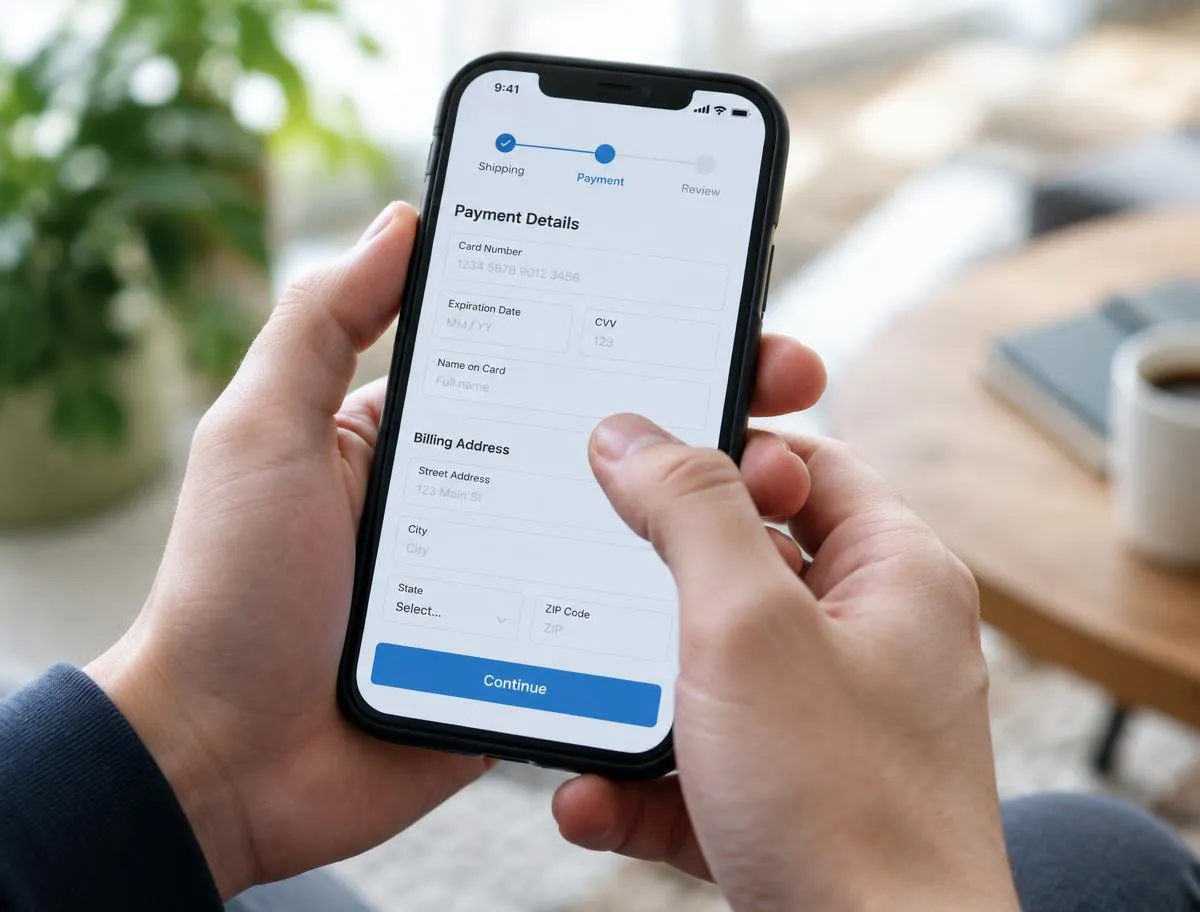
- Use the right field types so phones show the right keyboard: telephone fields for numbers, email fields for addresses.
- Use date pickers instead of free-text date entry.
- Keep tap targets large and avoid side-by-side fields on narrow screens.
- Test the entire checkout on a real phone, not just a resized browser window.
8. Price Paid Add-Ons Transparently
Checkout fields can also increase order value. Gift wrapping, priority processing, or express delivery can be offered as paid options directly on the checkout form.
Handle this carefully. Unexpected costs are among the top reasons shoppers abandon, so paid options should always be opt-in, clearly priced, and reflected in the order total right away. Used this way, add-ons increase revenue without eroding trust.
9. Save Details for Returning Customers
Returning customers shouldn't have to re-enter the same information every time. Saving custom field values to the customer's account and pre-filling them on their next order makes repeat purchases faster, which matters most for stores with regular buyers such as B2B clients or subscription-style customers.
10. Make Sure the Data Reaches Your Team
Collecting the right data only helps if the people fulfilling orders can see it. Make sure custom field values appear in admin order emails, on the order details screen, and on the order list where possible. Customers should also see their choices, such as a delivery date or gift message, on the Thank You page and in their confirmation email, which reassures them the order is right.
How to Measure Whether Your Changes Are Working
Checkout optimization shouldn't be guesswork. Before making changes, record your baseline:
- Checkout completion rate: the percentage of shoppers who start checkout and place an order
- Cart abandonment rate
- Average order value, especially if you add paid options
- Mobile vs. desktop conversion rates
Set up a checkout funnel in Google Analytics 4 to see where shoppers drop off. Then make changes one or two at a time and compare results over a few weeks, so you know which changes made the difference.
Common Mistakes to Avoid
- Adding fields "just in case." If you won't use the data, don't ask for it.
- Making optional fields required. This is one of the quickest ways to frustrate shoppers.
- Forgetting block checkout. If your store uses the Checkout Block, make sure your customizations work there too.
- Skipping testing. Place test orders with different products, user roles, and devices after every change.
- Hiding costs in fields. Any field that adds a charge should state the price clearly before the shopper selects it.
Frequently Asked Questions
Can I customize WooCommerce checkout fields without coding?
Yes. A checkout field editor plugin lets you add, remove, edit, and reorder fields through a visual interface, with no code required.
Does removing checkout fields really improve conversions?
Shorter, simpler forms reduce effort and hesitation, which is why research consistently links long or complicated checkouts to abandonment. The biggest gains usually come from removing unnecessary fields and hiding irrelevant ones with conditional logic.
What is conditional logic in checkout fields?
Conditional logic shows or hides a field based on a rule, such as the product in the cart, the customer's user role, or the value of another field. This keeps the form short for most shoppers while still collecting extra details when they're needed.
Will checkout customizations work with the WooCommerce Checkout Block?
It depends on the method. Code using the classic checkout filter won't apply to the Checkout Block, so if you use block checkout, choose a plugin that explicitly supports it.
Conclusion
The checkout form is where buying intent turns into revenue, and small changes to it can have a large effect. Remove what you don't need, show the rest only when it's relevant, validate inputs as shoppers type, and design for mobile first.
Start with an audit of your current checkout, make a few focused changes, and measure the results. Your customers will notice a faster, simpler checkout, and your conversion rate will reflect it.